

Navigation
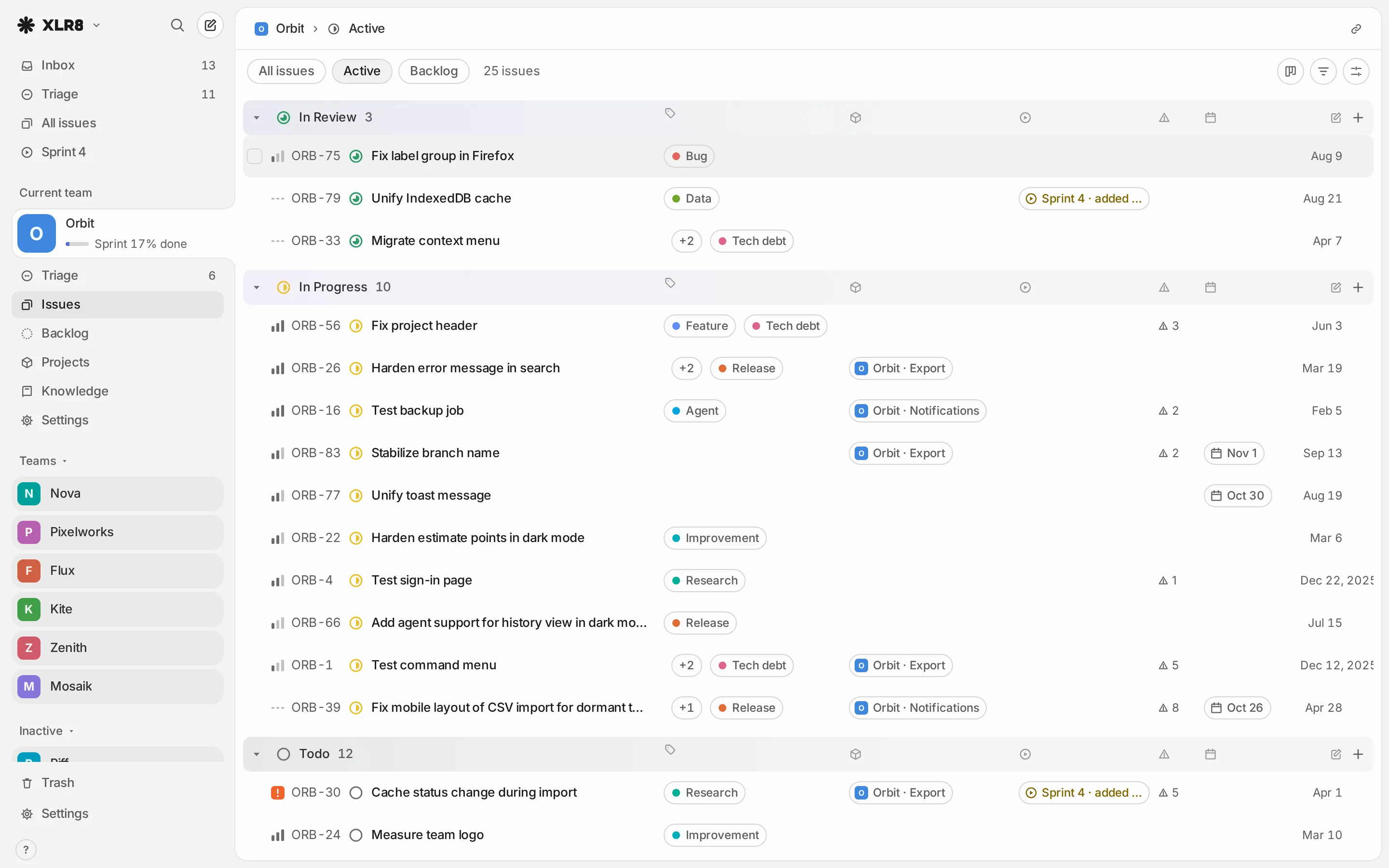
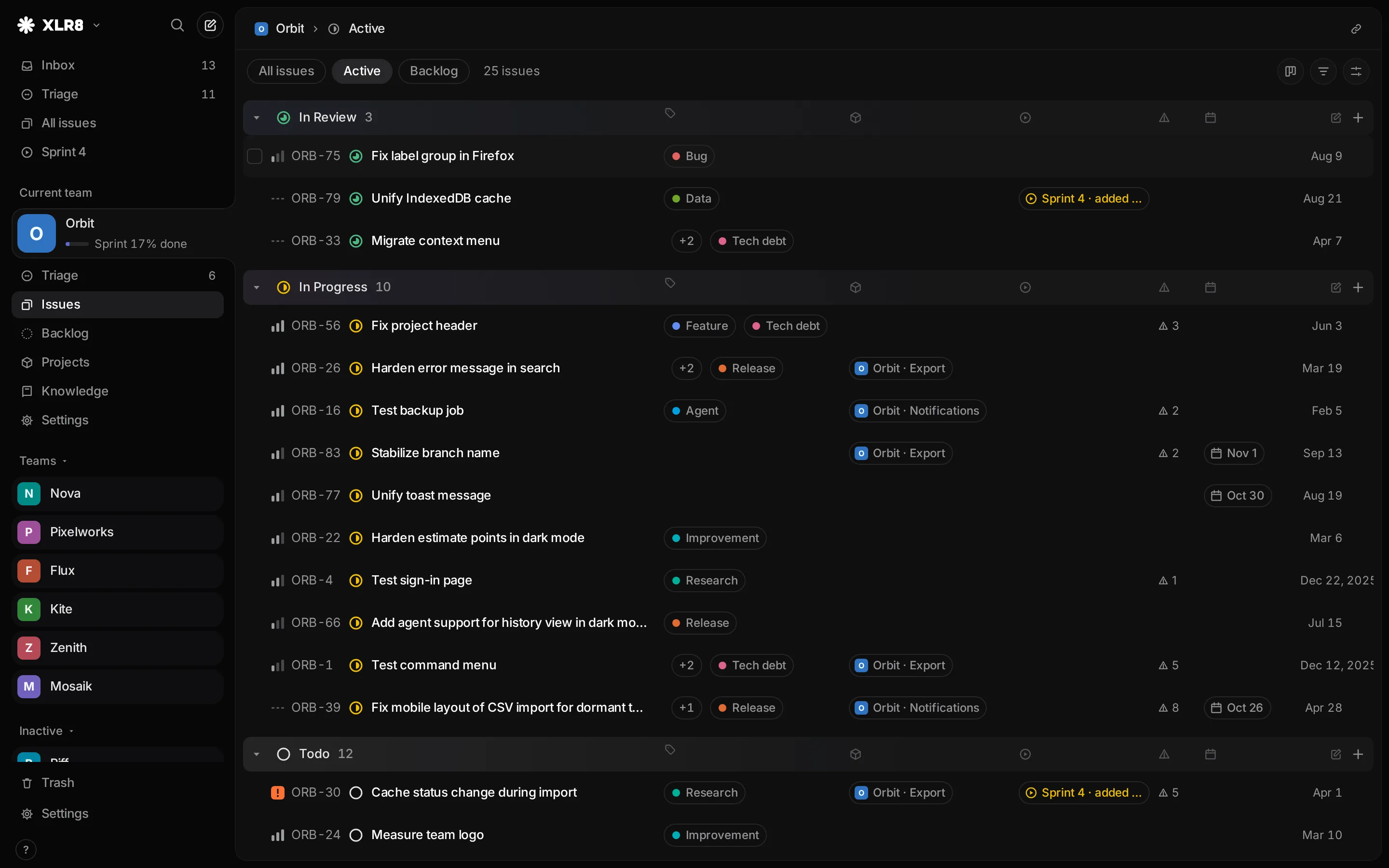
XLR8 has a sidebar on the left and the current page on the right. You can reach every place with the mouse, but most people quickly switch to a handful of two-key shortcuts like G then I for the inbox. This page explains the layout, the views and the fastest ways to move between them.
The sidebar
Section titled “The sidebar”From top to bottom, the sidebar holds:
- The header: the XLR8 button opens the command menu, the magnifier opens the issue search, and the pen opens the create dialog. A dot on the pen means you have unsent drafts.
- Views across all teams: Inbox and Triage (each with a count when something is waiting), All issues, and the sprint entry. The sprint entry shows the name of the running sprint, or “Planning” while a sprint is being planned and none runs yet. Drafts appears here only while you have drafts.
- Current team: a card for the team you are working in, with its numbers (sprint progress, or open issues by state), and below it the team’s pages: Triage (only when issues are waiting), Issues, Backlog, Projects, Knowledge (when the team has a knowledge area) and Settings.
- Teams: all other teams. Click a card to make that team the current one. The plus button next to the heading adds a team. Teams marked as dormant are listed separately under Inactive.
- The footer: Trash, Settings, and a ? button that lists all keyboard shortcuts.
A team set up for knowledge only shows just Knowledge and Settings, because it has no issues.
A view is a list of issues with a fixed purpose. Some views span all teams, others belong to one team.
| View | Shows | Across teams | Per team |
|---|---|---|---|
| Inbox | Issues that agents created, until you remove the entry (more) | yes | |
| Triage | New issues with the status Triage, waiting to be sorted | yes | yes |
| All issues | Every issue that is not deleted | yes | yes |
| Active | Issues in a started or not-yet-started status (by default Todo, In Progress, In Review) | yes | yes, as Issues |
| Backlog | Issues in the Backlog status | yes | yes |
| Sprint | Issues in the running sprint (more) | yes | yes |
| Project | The issues of one project, opened from the team’s Projects page | yes | |
| Trash | Deleted issues; they stay for 30 days | yes |
On All issues, Active and Backlog, tabs at the top switch between the three. The sidebar entry Issues of a team opens its Active view.
Drafts is not a view of issues but a list of the issues you started and did not create yet. See Creating issues.
Moving through a list
Section titled “Moving through a list”| Keys | Effect |
|---|---|
| J or Down arrow | next issue |
| K or Up arrow | previous issue |
| Home / End | first / last issue |
| Enter | open the focused issue |
| Space | preview the focused issue without leaving the list (peek) |
| Esc | back from the issue to the list |
On an open issue, J and K step to the next and previous issue of the list you came from, so you can work through a list without going back each time.
Go-to and open sequences
Section titled “Go-to and open sequences”Sequences are two keys pressed one after the other: press G, let go, then press the second key within about 1.2 seconds.
| Keys | Goes to |
|---|---|
| G then I | Inbox |
| G then T | Triage |
| G then A | All issues |
| G then E | Active issues (of the team you are in, if any) |
| G then B | Backlog (of the team you are in, if any) |
| G then S | Sprint |
| G then W | Knowledge of the current team |
| G then X | Trash |
The O sequences open things:
| Keys | Opens |
|---|---|
| O then I | recently opened issues |
| O then T | team switcher |
| O then N | dialog to add a team |
| O then S | settings of the current team |
Places without a shortcut, like Drafts, All sprints or a settings page, are one search away in the command menu: type “drafts” or “labels” and press Enter.
Recently opened issues
Section titled “Recently opened issues”O then I opens the issue search with your recently opened issues already listed, newest first. Pick one with the arrow keys and Enter, or start typing to search all issues instead. XLR8 remembers the last 12 issues you opened in this browser.
Going back
Section titled “Going back”Esc on an open issue takes you back to the list you came from, with its filters and scroll position. The browser’s back button works the same way. If you opened the issue from a link, XLR8 returns you to the last list you used.
If something sits on top, Esc closes that first, one step per press: the menu drawer on a phone, the preview, the open issue, then the selection in the list.
Links to every page
Section titled “Links to every page”Every page has its own address, so you can bookmark it, share it or open it in a new tab. Some examples,
with ACME as the team key:
| Address | Page |
|---|---|
/ |
the view you used last |
/inbox, /triage, /all, /active, /backlog |
views across all teams |
/team/ACME |
Active issues of the team ACME |
/team/ACME/all, /team/ACME/backlog, /team/ACME/triage |
other views of the team |
/team/ACME/projects |
the team’s projects |
/team/ACME/wiki |
the team’s knowledge area |
/issue/ACME-42 |
one issue |
/sprint, /sprints |
the running sprint, all sprints |
/trash, /drafts, /settings |
trash, drafts, settings |
Filters, grouping, ordering and the board layout are part of the address too (see
Views and filters). The link button at the top right of a
list copies the address of the view as you see it. For an issue, CtrlCommand Shift , copies its
link and CtrlCommand . copies its ID, like ACME-42.
When you type an issue ID such as ACME-42 in a description or comment, XLR8 turns it into a link to
that issue.
Inbox side by side
Section titled “Inbox side by side”On a window at least 1100 pixels wide, the inbox shows the list on the left and the selected issue on the right. Moving with J and K updates the right side, so you can read through new issues without opening each one.
More room
Section titled “More room”Toggle sidebar in the command menu hides the sidebar on a desktop and brings it back.
On a phone
Section titled “On a phone”On a narrow screen (up to 768 pixels), the sidebar moves into a drawer and a bar at the bottom offers Inbox, Issues, Sprint, Search and More. More opens the drawer with the full sidebar. The round button above the bar creates an issue. A long press on an issue opens the same menu you get with a right click on a computer.
